The App Couldn’t Reach Surfshark Systems: How to Fix Error

Surfshark is widely recognized as one of the best VPN services for safeguarding online privacy, securing internet connections, and bypassing geo-restrictions. However, even top-rated VPNs can occasionally run into technical issues.
One of the most common problems users encounter is the error message: “The app couldn’t reach Surfshark systems.”
This error typically occurs when the Surfshark app is unable to establish a connection with its servers. As a result, the VPN may stop working, leaving your internet traffic unencrypted and preventing access to Surfshark’s features.
Fortunately, this issue is usually easy to resolve. In this guide, we’ll explain the most common causes behind the error and provide step-by-step troubleshooting solutions for Windows, macOS, Android, and iPhone (iOS) devices.
Why does the Error “The app couldn’t reach Surfshark systems” Occur
There are different reasons why the Surfshark app may fail to reach its systems. Some of the most common ones include:
- Poor internet connection: If your internet is unstable or very slow, the app cannot connect to Surfshark servers.
- Firewall or antivirus blocking: Security software sometimes blocks VPN connections by mistake.
- Outdated app version: Running an old version of Surfshark may cause compatibility issues.
- Problems with Surfshark servers: Rarely, the issue may be on Surfshark’s side if their systems are down.
- Incorrect network settings: Misconfigured DNS or proxy settings on your device can stop the app from connecting.
How to Fix the Error: The App Couldn’t Reach Surfshark Systems
Here are some of the ways how you can fix the issue, and get Surfshark up and running smoothly.
Step 1: Check Your Internet Connection
The first thing you should do is confirm that your internet is working. Try loading a website without the VPN.
If the site does not open, restart your router. You can also switch between Wi-Fi and mobile data to test the connection.
A weak or unstable internet link is one of the simplest but most common causes of this error. Once your internet is stable, reopen Surfshark and try again.
Step 2: Restart the App and Device
Sometimes the problem is temporary. Close the Surfshark app completely and restart it. On Windows or Mac, make sure the app is not running in the background.
If that does not work, restart your device. This clears temporary files and resets your network connection.
After the restart, launch Surfshark and check if it connects.
Step 3: Update Surfshark
An outdated app can cause errors. Surfshark releases updates regularly to fix bugs and improve performance.
- On Windows or Mac: visit the official Surfshark website and download the latest version.
- On Android: open Google Play Store, search for Surfshark, and tap “Update.”
- On iOS: open the App Store, search for Surfshark, and tap “Update.”
After updating, open the app and see if the error is resolved.
Step 4: Disable Firewall or Antivirus Temporarily
Firewalls and antivirus software sometimes block VPN connections because they mistake them for threats.
On Windows:
- Open the Control Panel.
- Go to System and Security > Windows Defender Firewall.
- Click Turn Windows Defender Firewall on or off.
- Select “Turn off” temporarily and try connecting Surfshark.
On Mac:
- Open System Settings > Network > Firewall.
- Switch it off temporarily.
If Surfshark connects, add the app to the “exceptions” list in your firewall or antivirus settings. Do not keep your protection off permanently, only long enough to test the connection.
Step 5: Change VPN Protocol
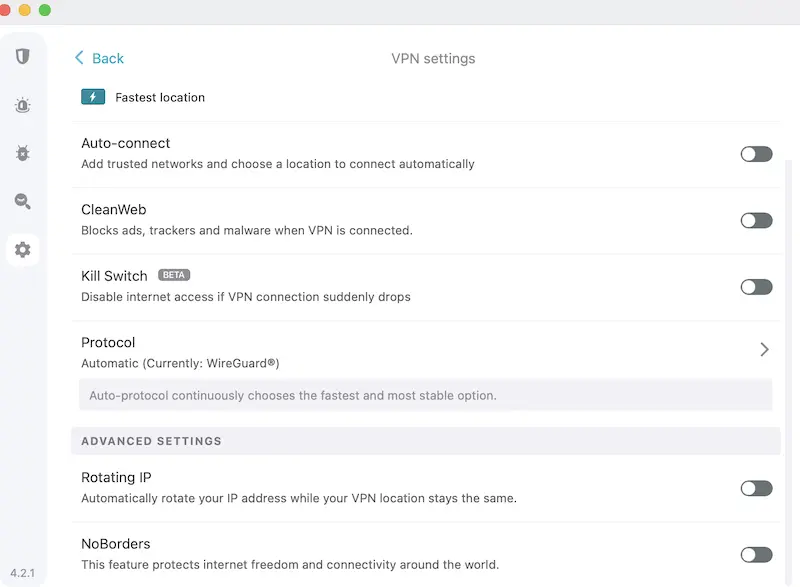
Surfshark supports different VPN protocols such as WireGuard, OpenVPN (TCP/UDP), and IKEv2. If one protocol fails, switching to another often solves the problem.
- Open the Surfshark app.
- Go to Settings > VPN Settings > Protocol.
- Choose a different protocol, such as WireGuard.
- Reconnect to the VPN.
Many users find that WireGuard provides both speed and stability.
Step 6: Clear Cache and App Data
On Android and iOS, app data or cache may become corrupted, leading to connection errors.
On Android:
- Open Settings > Apps > Surfshark.
- Tap Storage.
- Select Clear Cache and Clear Data.
On iOS:
- Delete the Surfshark app.
- Reinstall it from the App Store.
On Windows or Mac, reinstalling the app often has the same effect as clearing data.
Step 7: Check Your DNS Settings
Incorrect DNS or proxy settings may stop Surfshark from working. Resetting them to default often helps.
On Windows:
- Open Control Panel > Network and Internet > Network Connections.
- Right-click your active connection and select Properties.
- Select Internet Protocol Version 4 (TCP/IPv4) and click Properties.
- Choose Obtain DNS server address automatically.
On Mac:
- Go to System Settings > Network.
- Select your active connection.
- Click Details > DNS.
- Remove custom DNS entries and keep it blank.
This will restore your network to use default DNS settings.
Step 8: Reinstall Surfshark
If none of the above fixes work, uninstall the app completely and reinstall it. This ensures you get a fresh installation without corrupted files.
On Windows or Mac:
- Uninstall Surfshark from your system.
- Download the latest version from the official Surfshark website.
- Install it again and log in.
On Android or iOS:
- Delete the app.
- Reinstall it from the Play Store or App Store.
Step 9: Check if Surfshark Servers Are Down
Sometimes the problem is not with your device but with Surfshark itself. Though rare, servers can experience downtime.
Visit the official Surfshark status page or check their support Twitter account for announcements. If the servers are down, you will need to wait until they fix the issue.
Step 10: Contact Surfshark Support
If you still see the error after trying all the steps, the last option is to contact Surfshark support. They offer 24/7 live chat and email support.
Provide them with details such as your device type, operating system, app version, and the steps you have already tried.
Their team can provide advanced troubleshooting or confirm if the issue is specific to your account.
FAQs
Why do some apps not work with Surfshark?
Some apps may not work properly while connected to Surfshark due to VPN detection, IP address restrictions, network latency, or compatibility issues with certain VPN protocols.
Why is my Surfshark not connecting?
If Surfshark is not connecting, the issue is often related to network restrictions, firewall or antivirus interference, an overloaded VPN server, or a temporary protocol error.
Why can’t I reach Surfshark server?
If you’re unable to connect to the Surfshark server, first verify that your subscription is active and that you’re using the correct login credentials.
Next, try switching to another VPN protocol, such as WireGuard, OpenVPN, or IKEv2, and restart your device to refresh network settings.
Conclusion
The error “the app couldn’t reach Surfshark systems” can be frustrating, but it is usually easy to fix. Most of the time, it comes down to internet issues, outdated apps, or blocked connections.
By following the steps in this guide, you can quickly identify the cause and restore your VPN connection.
Once the error is fixed, you can get back to browsing safely with Surfshark protecting your connection.